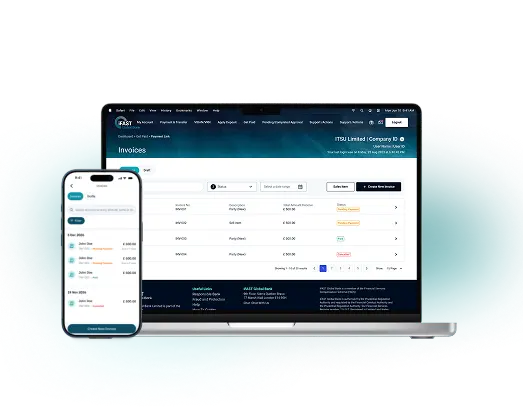
Invoicing

Get paid on time, every time. Create and send professional automated invoices in just a few clicks, at no additional cost.

Get started
Invoice dashboard

Invoicing that works for you

Professional invoices, timely reminders and fewer manual follow-ups.

Automated invoice on a business device

No more manual invoicing
No more costly errors

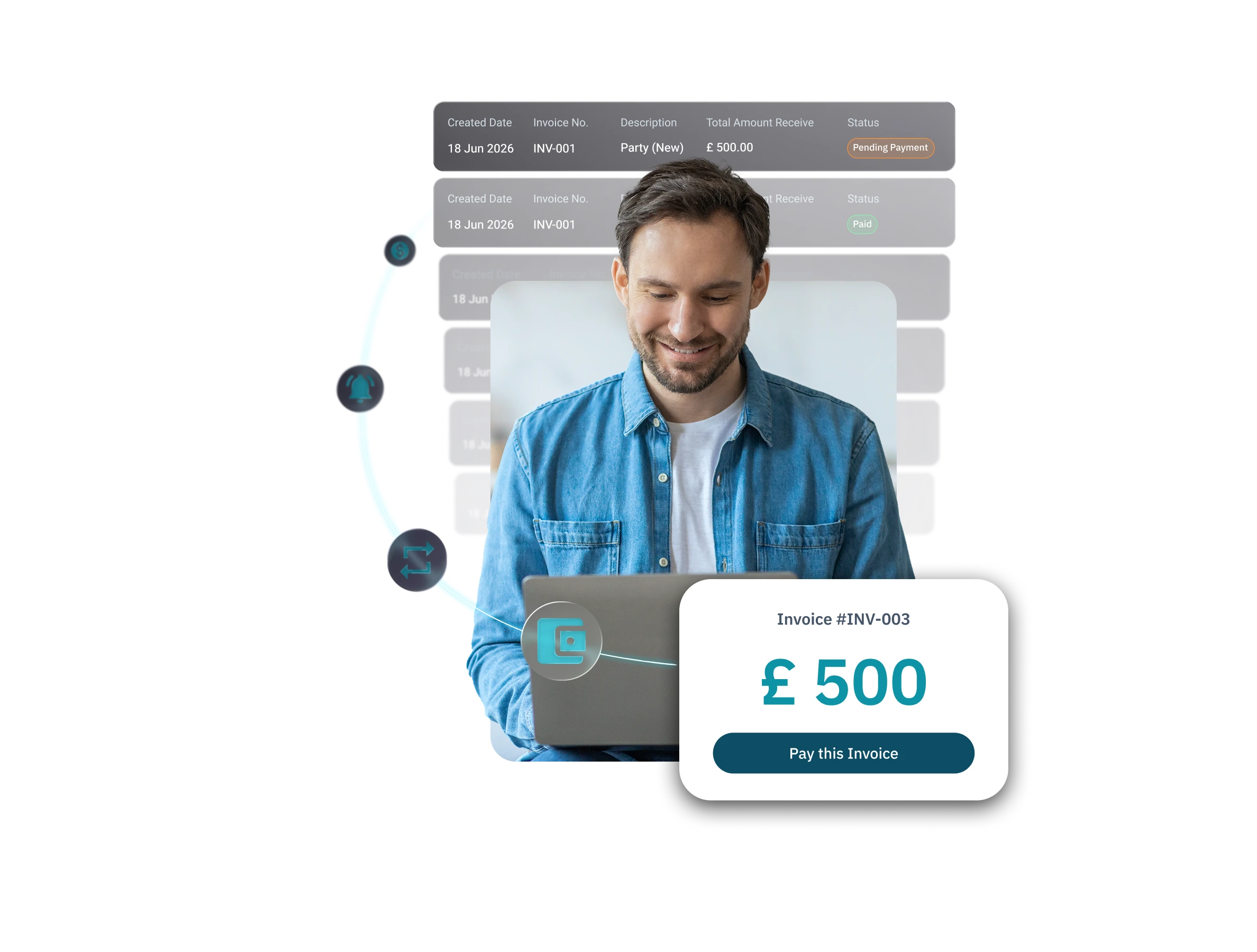
Look professional every time. Simply enter the required details, and an automated invoice will be generated for your review and sent to your customers on your behalf.

Invoice payment reminder

Reduce payment delays with automatic reminders

Stay on top of outstanding invoices with automatic tracking and payment reminders. Payment reminders are sent when invoices become overdue, helping reduce manual follow-ups.

Invoice payment statuses

Get paid your way

Set up one-off or recurring invoices and let iFAST handle the rest. Consistent cash flow, less admin.
Invoices overview

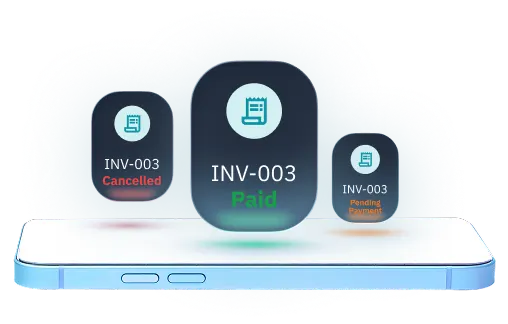
Your invoices, all in one place

Monitor invoice statuses, keep on top of payments, and stay organised with ease.

How To Invoice

Log in to your iFAST Business account

From the home screen, navigate to the ‘Get Paid’ section.

Create your invoice

Select ‘Invoices’, then click ‘Create Invoice’.

Enter the details

Add your details and choose automatic sending and payment reminders.

Preview and get paid

Review your invoice, download or share it, then start getting paid.

Automate your invoices today

Spend less time on admin and more time growing your business

Get Started

FAQs

This feature allows you to create and share digital invoices with your customers when you provide a service or sell an item.

Your customer can follow the payment instructions provided in the invoice to make a payment directly to your selected iFAST Global Bank account.

 To create an invoice, please follow the steps below:  

1. Log in to your iFAST Global Bank account. Once logged in, navigate to Get Paid and select Create Invoice.
2. To add a customer, you may either select an existing customer from your customer list, or select the option to add a new customer.
3. Enter the Invoice Details and complete the relevant invoice information, including:
  • Invoice Number
  • Invoice Schedule
  • Invoice Date
  • Description of Item or Service
  • Item Price
You may also optionally add your business logo and any relevant attachments to the invoice.

4. Once all invoice details has been filed, you may preview the Invoice. You can either:
  • Select Save Draft to complete the invoice later; or
  • Select Preview to review the invoice details before creating it.
5. Once you have confirmed that all the information is correct, select Create Invoice to generate the invoice.
6. Share the Payment Link by copying the link, downloading or sharing its QR code, or sending it directly to your customer via email if notifications are enabled.

Your customer can then use the payment link provided in the invoice to make a payment directly to your selected iFAST Global Bank account.
There are several ways to share the Invoice to your customer, including:

You can:

  • Copy and share the link manually.
  • Use the built-in sharing options button
  • Download the Invoice in PDF and share manually via email.
  • Share the QR Code linked to the invoice
  • Send it automatically by email if you enable 'Notify your Customer' during invoice creation or invoice editing.

Yes. You can choose whether the invoice is for a one-time payment or is issued on a recurring basis.


One-time payment

For a one-time invoice, you can specify the payment due date when creating the invoice. Your customer can then make the payment according to the payment instructions provided in the invoice.


Recurring invoice

For a recurring invoice, you can set up the invoice cycle based on:

  • Invoice due date – specify when each invoice payment is due.
  • Recurring frequency – select how often the invoice should be issued.
  • End of invoice cycle – specify when the recurring invoice arrangement should end.

This allows you to schedule invoices according to your regular billing arrangements without needing to create each invoice individually.

View More FAQ