Tap. Pay. Go.

Add your iFAST Debit Card for a secure way to pay on the go with the same protection and benefits you already enjoy.
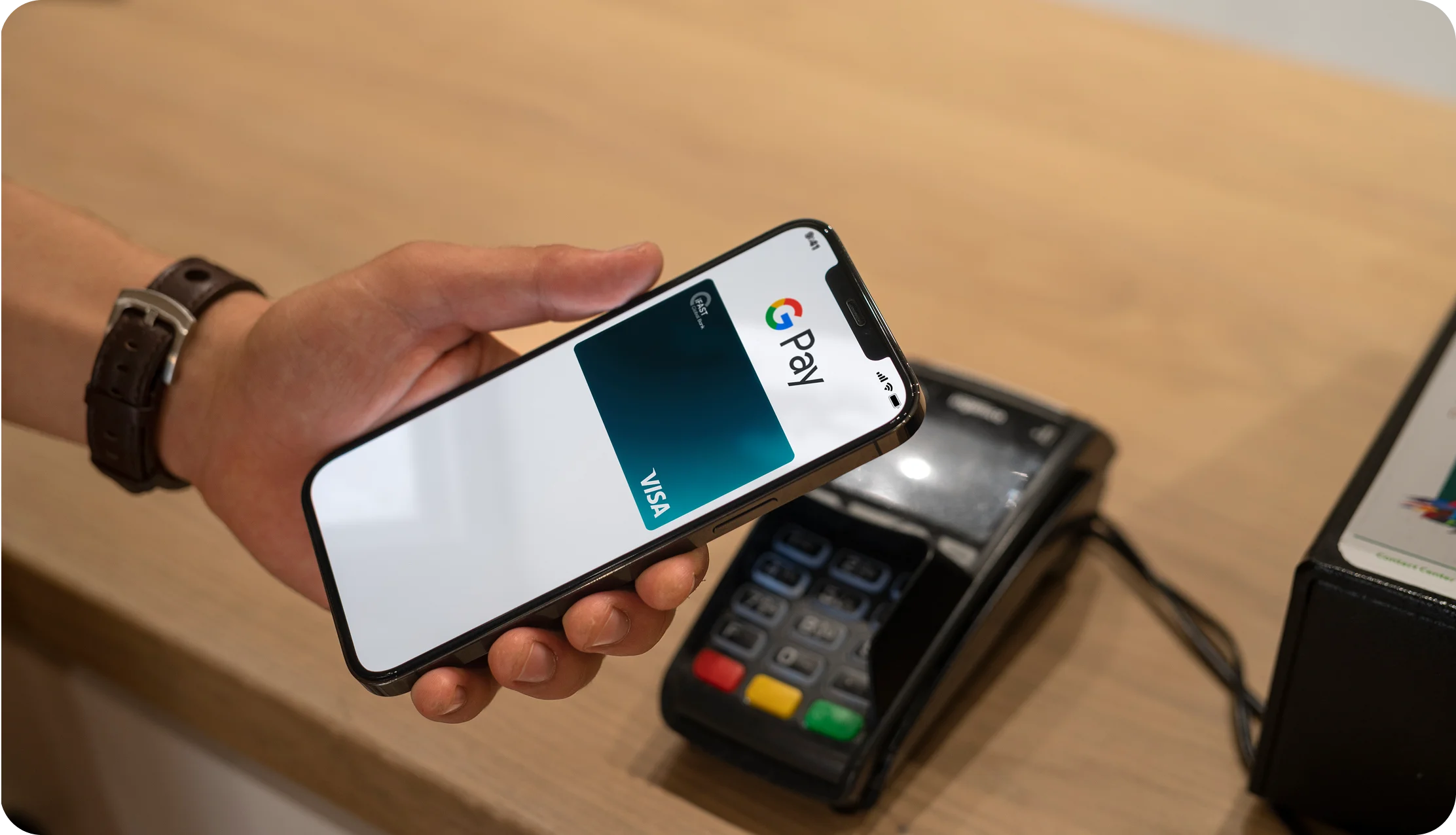

Tap pay go

Why Go with Google Pay?

Tap pay go

Tap and go

Pay online and in apps without delays or forms.

Tap pay go

Extra-secure access

Most payments require you to unlock your phone, keeping your transactions safer.

Tap pay go

Advanced protection

Your card details are never shared with merchants or stored on your device.

How to add your card in Google wallet using iFAST Global Bank app?

business.banking.google.pay.add.card.step.1
1

In the iGB app, go to “Home” and tap “View Debit Card”

2

Tap “Add to Google Pay” and follow the onscreen instruction

3

That’s it. You’re all set!

FAQs

You will share the same limits as normal and the transactions made with Google Pay will count towards your contactless limit.
You do not need to manually re-add your card to Google Wallet if your debit card has been replaced. iFAST Global Bank will automatically sync your new card details with Google Wallet for you.  
You can use your iFAST Multi-Currency Debit Card with Google Pay for both online and in-store purchases once it is linked to your Google Wallet.  

1. For in-store purchases: Unlock your phone and tap it on a contactless payment terminal to complete the transaction.
2. For online purchases: Select Google Pay as the payment method at checkout on supported websites or mobile apps.
If your debit card transaction was declined while using Google Pay, please ensure that your iFAST Global Bank account is active and has sufficient funds. Also, check that your debit card is correctly added to your Google Wallet and has not been removed or suspended.  

If the problem persists, please contact Customer Service for further assistance.