
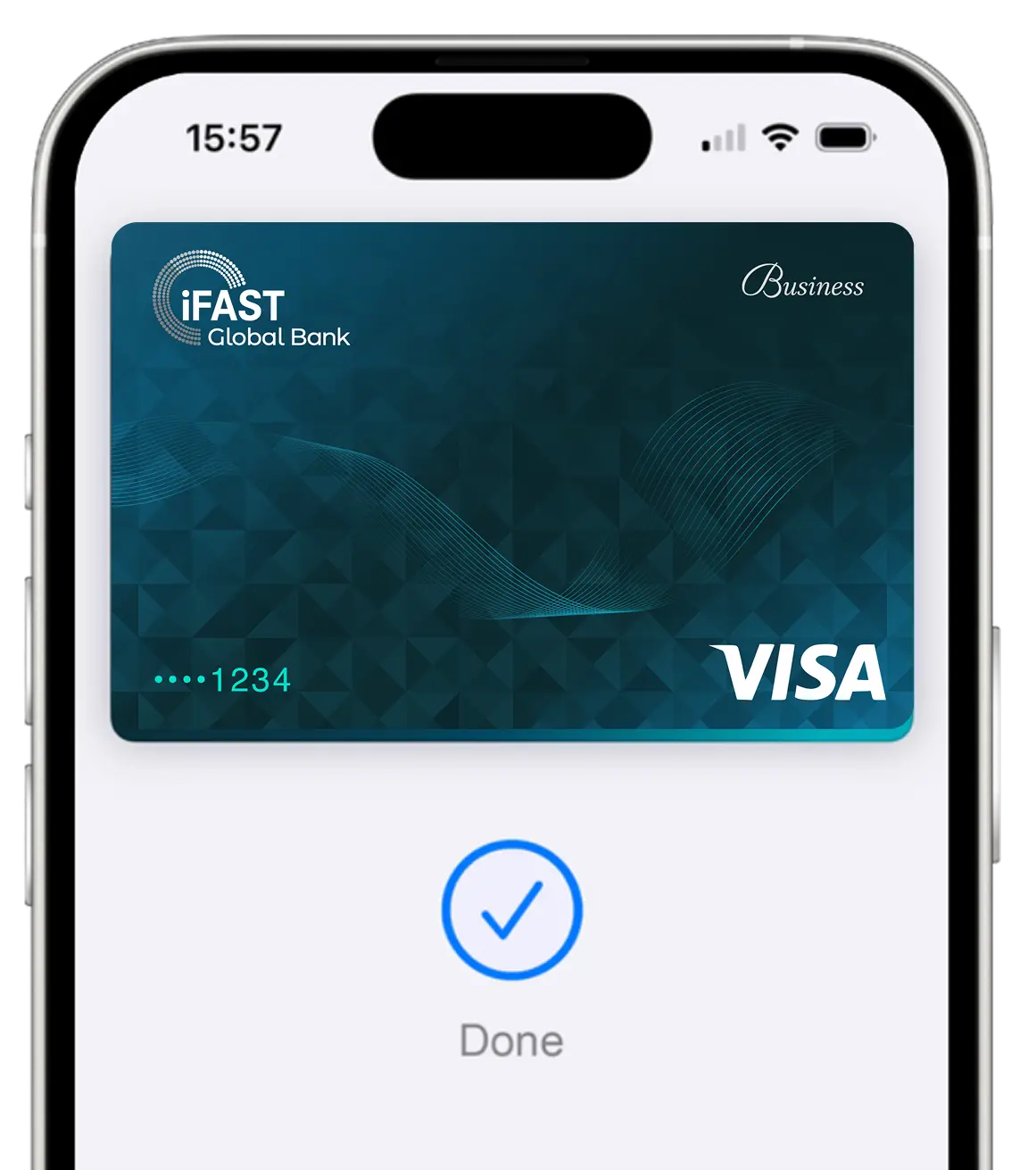
Easy
With Apple Pay, you can pay quickly and easily with your iFAST Business Card straight from your Apple devices.
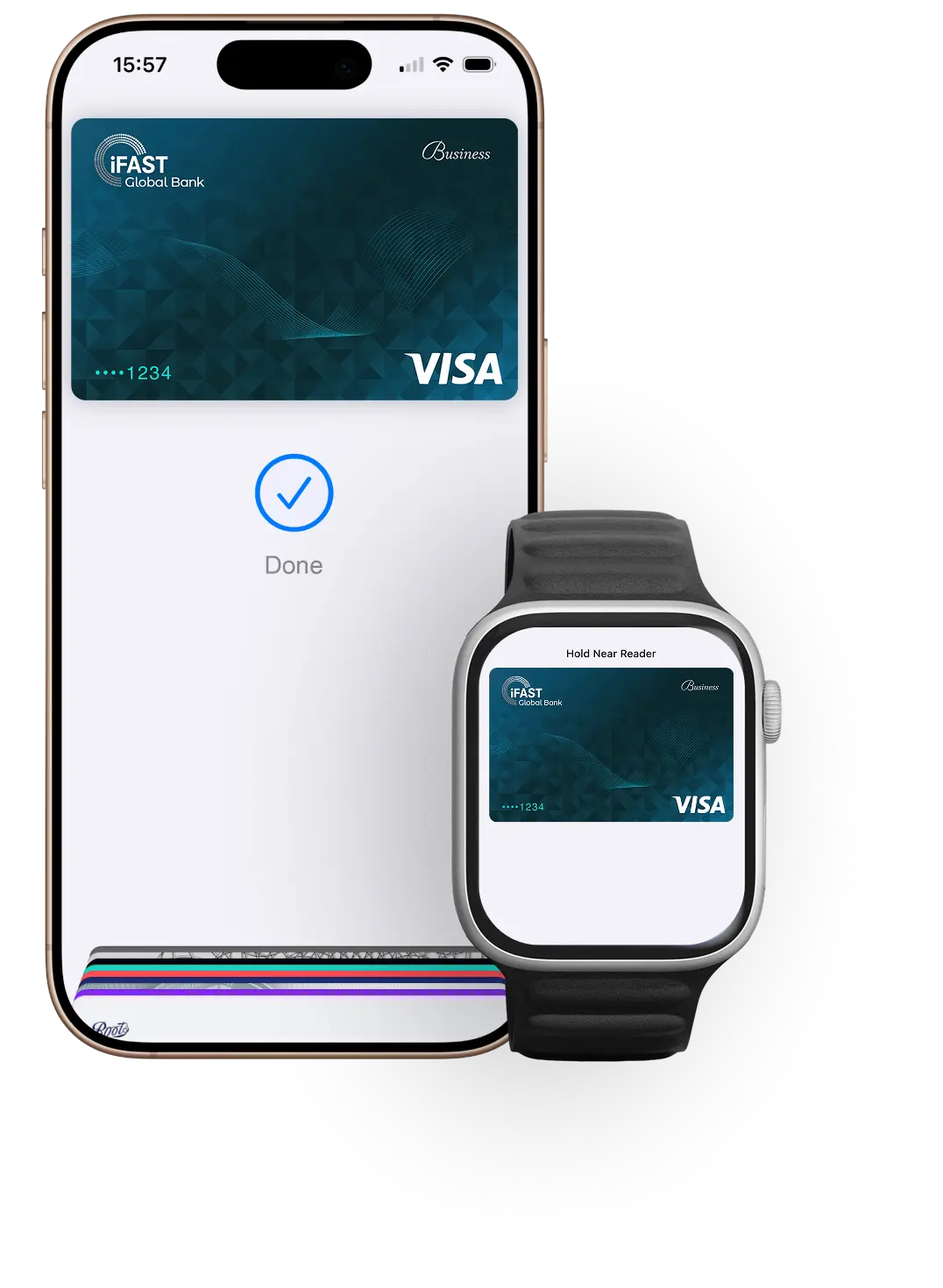


Adding your iFAST Business Card to Apple Wallet and start spending instantly. Make easy, secure, private payments in stores, in apps, and online, anywhere you see the Apple Pay or contactless symbol.
With Apple Pay, you can pay quickly and easily with your iFAST Business Card straight from your Apple devices.
Apple Pay uses security features built into your Apple Devices, including Face ID and Touch ID—so only you can authorise payments with your iFAST Business card.
Your actual card number is never stored on your device or Apple servers. And when you pay, your card number is never shared by Apple with merchants, keeping these details hidden and offering an additional level of protection against fraud.
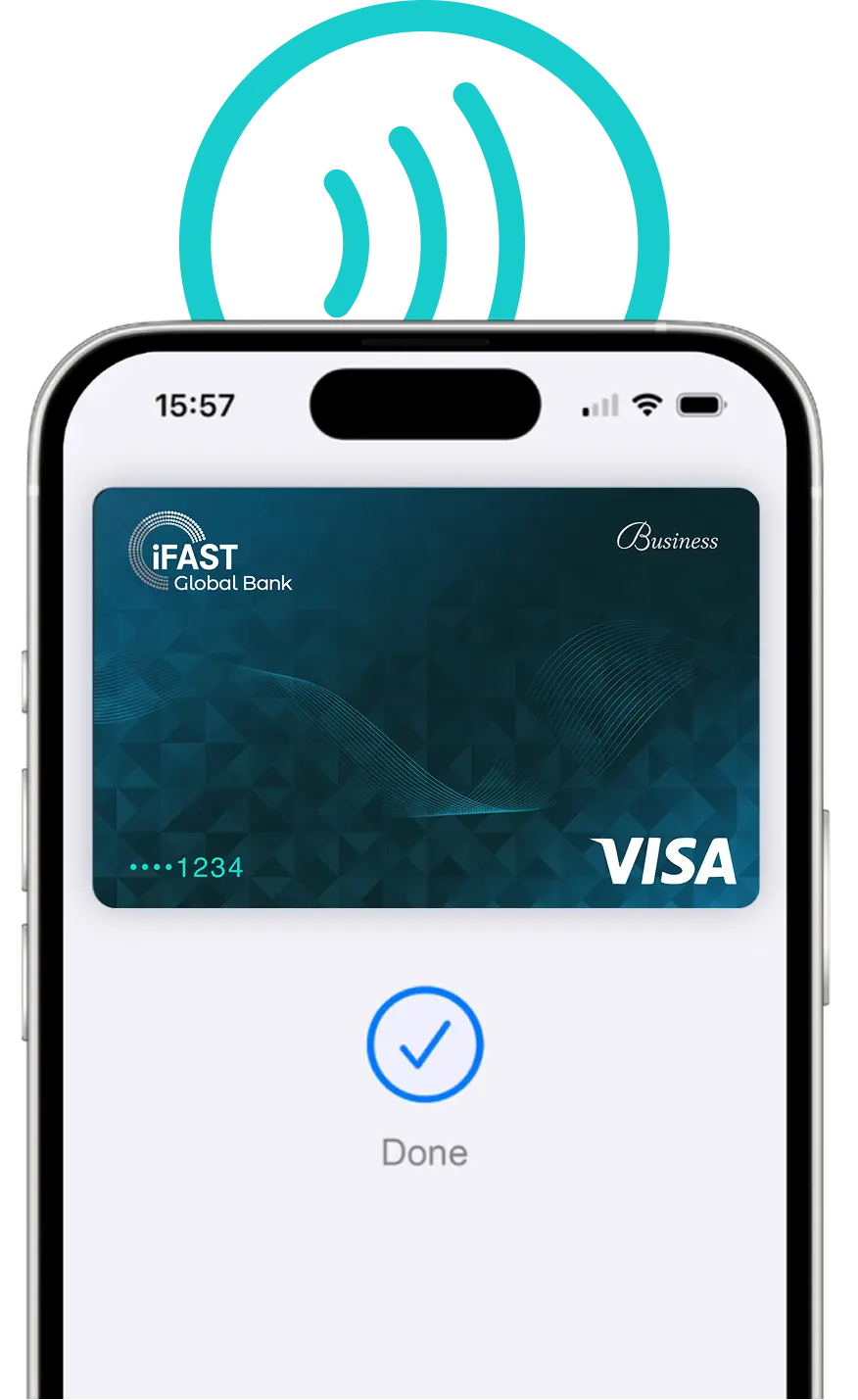
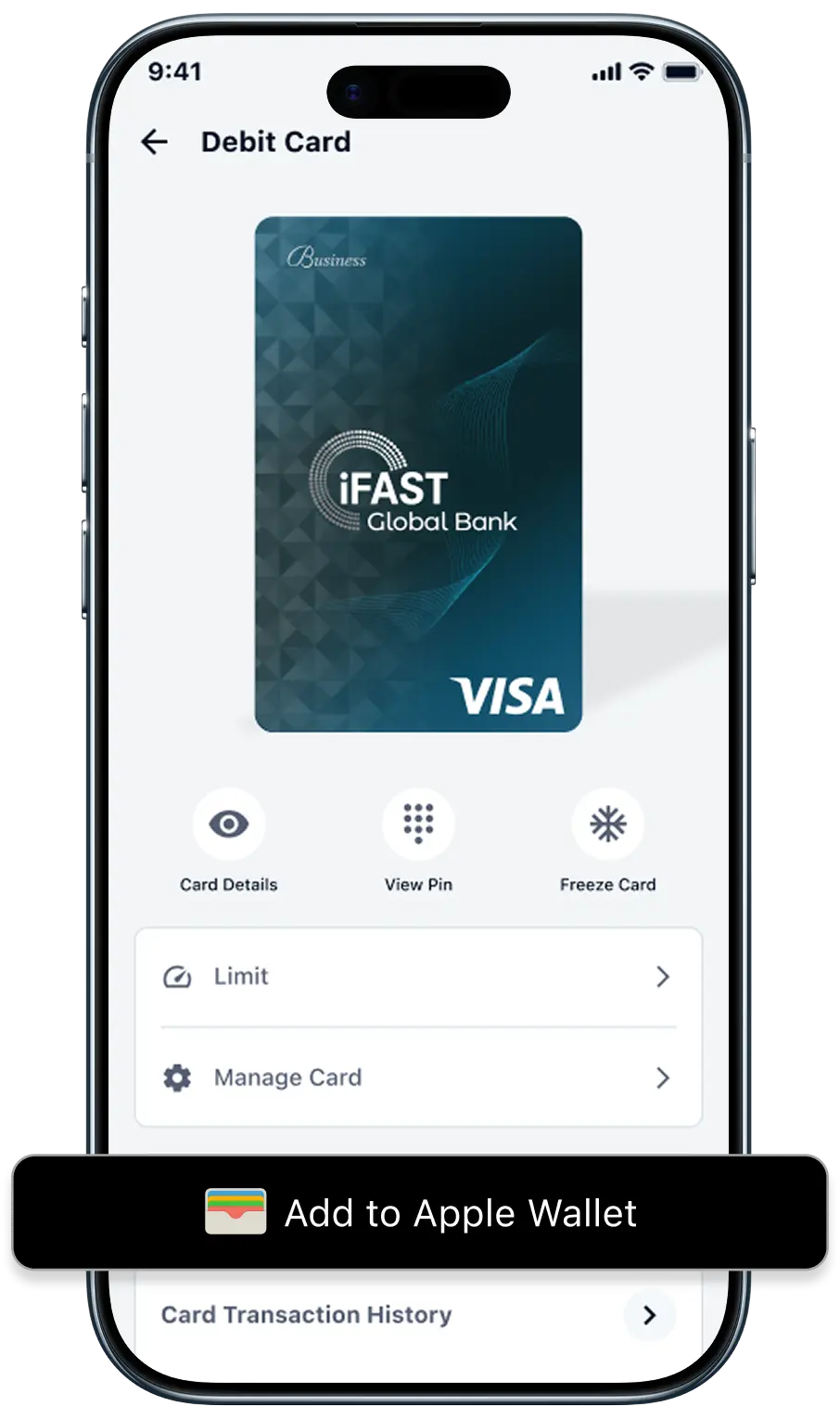
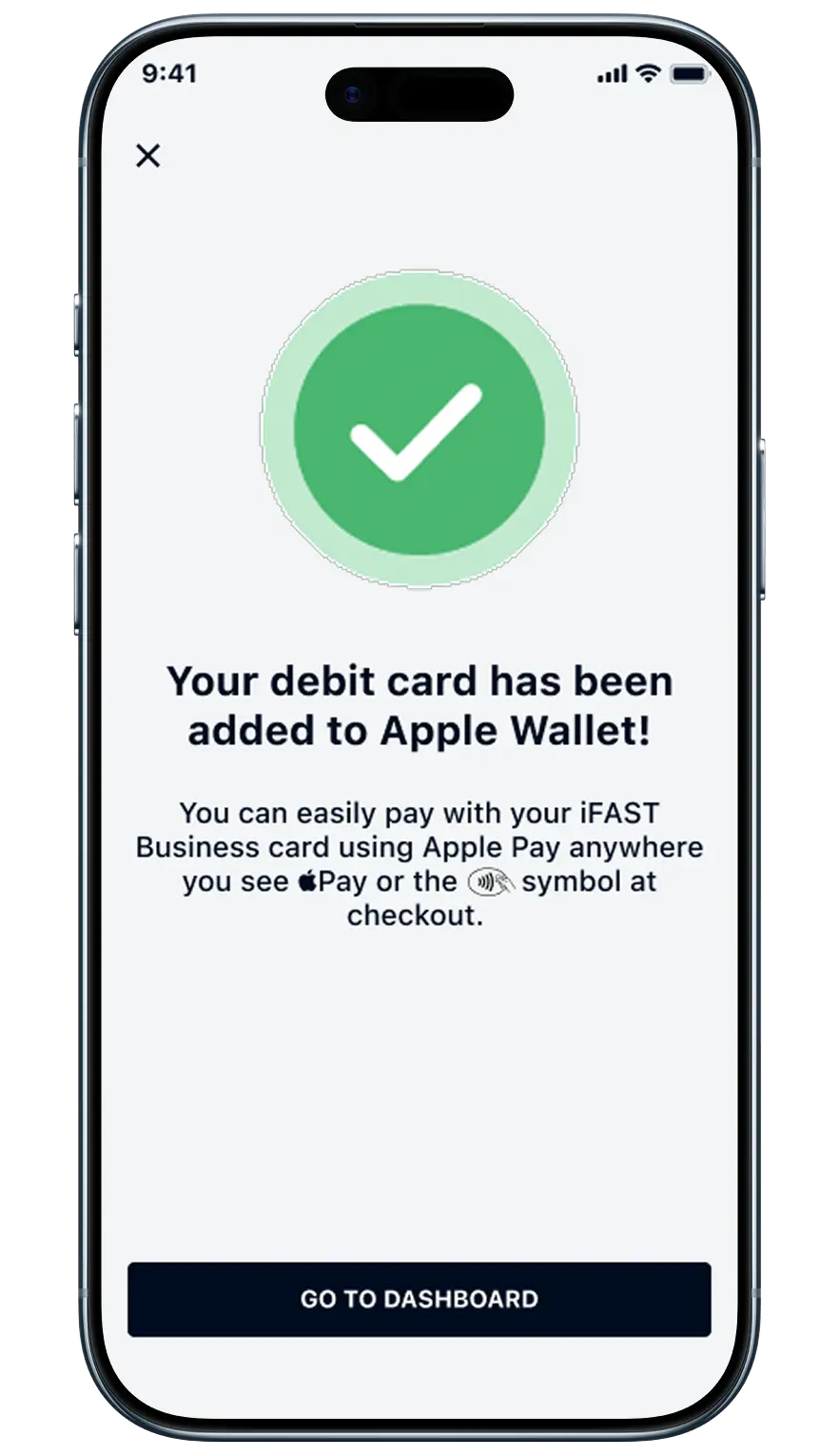
Adding your iFAST Business card through Apple Wallet or iFAST Business app is simple
Open Apple Wallet on your iPhone.
Tap the Add (+) button, then tap Debit Card.
Follow the steps on the screen to add a new card.
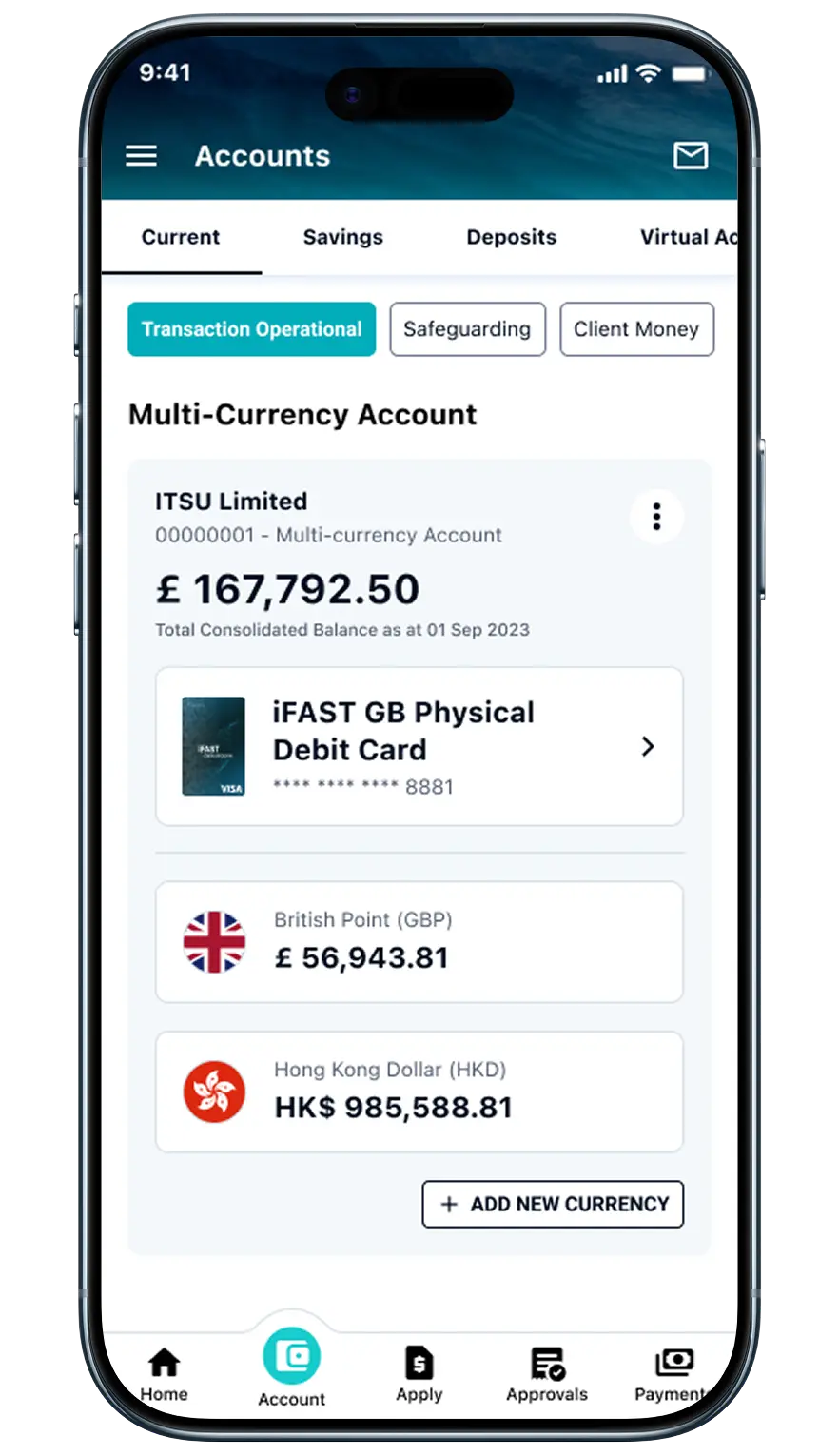
When you use your iFAST Business card with Apple Pay, you’ll get the benefits and rewards you love - just like you would with your physical card. 11 currencies, 1 account. Spend anytime, straight from your balance.


