Tap. Pay. Go.

Add your iFAST Debit Card for a secure way to pay on the go with the same protection and benefits you already enjoy.
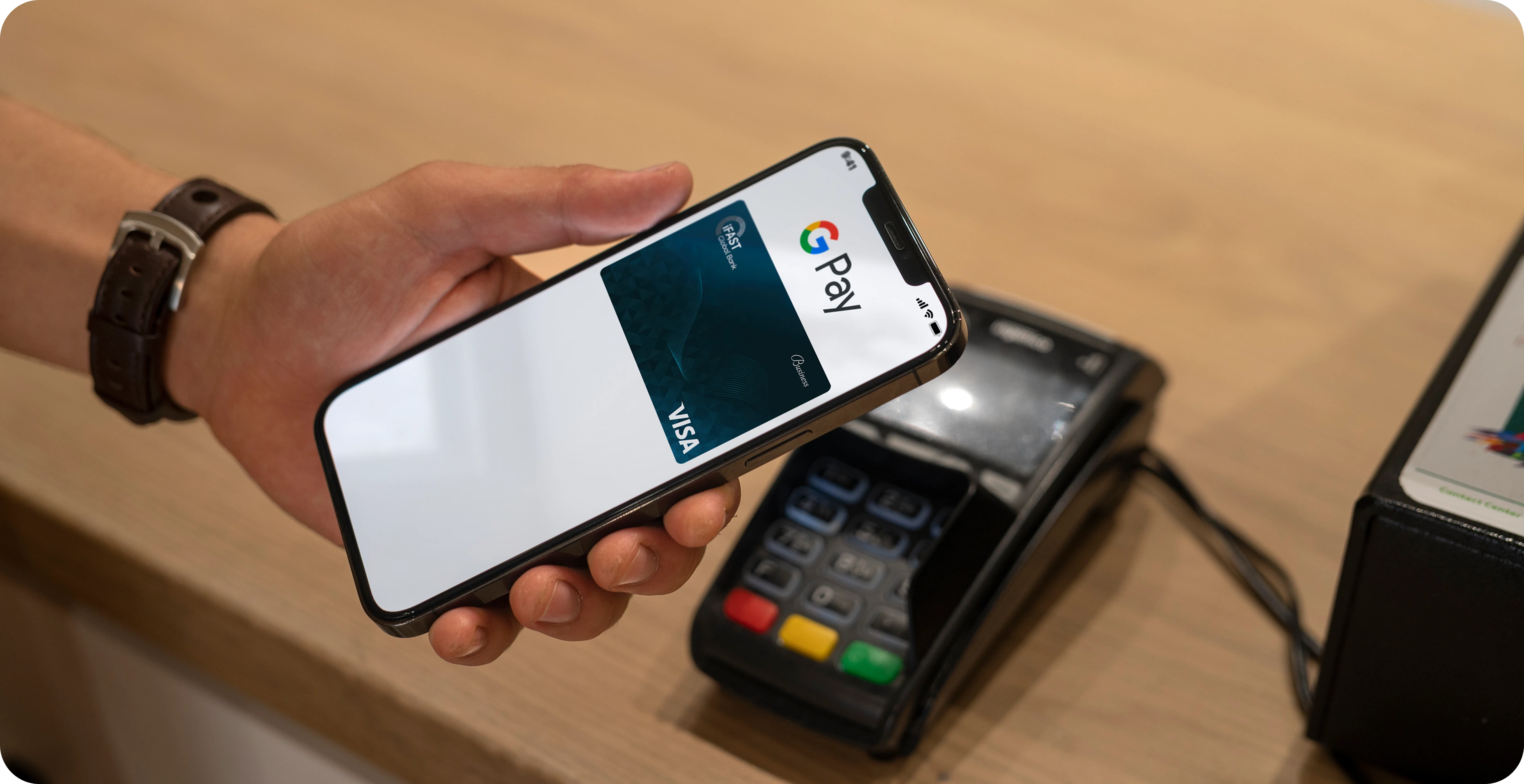

Tap pay go

Why Go with Google Pay?

Tap pay go

Tap and go

Pay online and in apps without delays or forms.

Tap pay go

Extra-secure access

Most payments require you to unlock your phone, keeping your transactions safer.

Tap pay go

Advanced protection

Your card details are never shared with merchants or stored on your device.
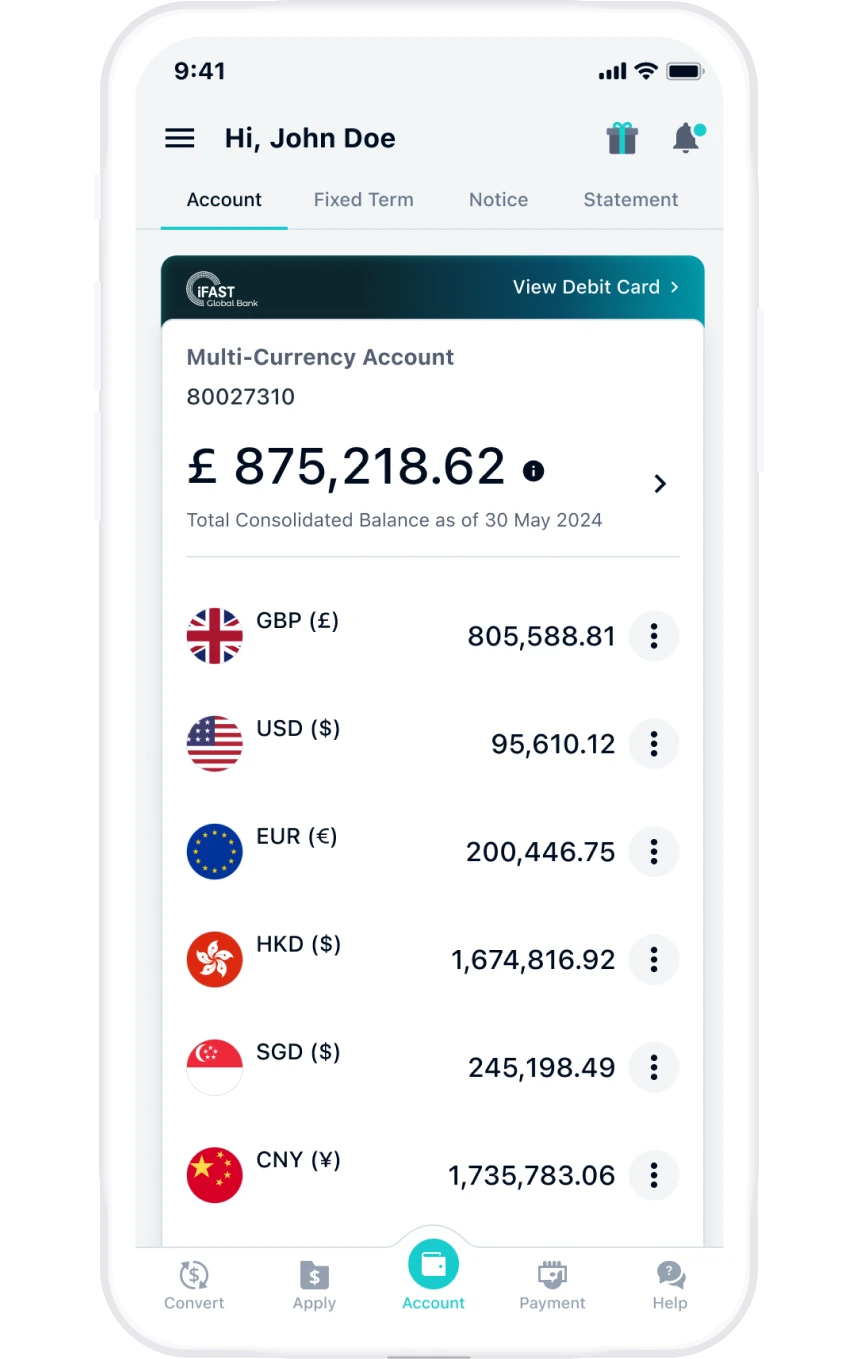
How to add your card in Google wallet using iFAST Global Bank app?

business.banking.google.pay.add.card.step.1
1

In the iGB app, go to “Home” and tap “View Debit Card”

2

Tap “Add to Google Pay” and follow the onscreen instruction

3

That’s it. You’re all set!

FAQs

Unfortunately, the mobile wallet service to Apple Pay is not available at the moment. We are working hard to expand availability and will release more information through our official channels in the near future. 
You will share the same limits as normal and the transactions made with Google Pay will count towards your contactless limit.
Freezing your debit card will block your Google Pay payments. Any attempted transactions through Google Pay will be declined while the card remains frozen.  
Once your digital debit card is activated, you can link the card to Google Pay(G Pay) by follow the steps below:

1. Open your iFAST Business Banking Mobile App.
2. At "Account" Page, view your debit card under "Multi-currency Account".
3. Click "Add to G Pay" to begin wallet linkage.
4. After being redirected to Google Pay page, click "Add to Wallet". Then click "Continue" to proceed.
5. After reading through the Terms and Conditions of Google Pay, scroll down to "Accept".
6. Your debit card has now successfully linked to Google Pay.